<< Return to Quick Start Guide index
If this is your first time using a Zntri app, welcome! This guide will walk you through opening the app for the first time and get you logged into your new Zntri account.
TABLE OF CONTENTS
Downloading Zntri
The first step to getting started with Zntri is to download the app! Zntri supports both iOS and Android phones. To get the app you can use the links below or you can search for Zntri in the App Store or Google Play Store.
Once downloaded you should see the following app in your home screen or app drawer. 
Go ahead and tap to open it up!
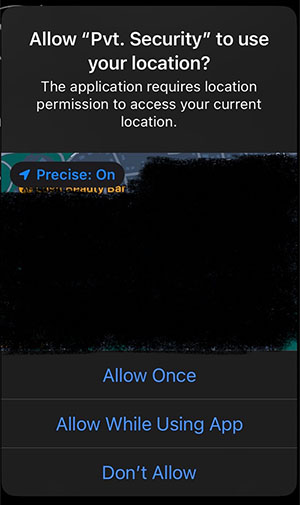
When the Zntri app first opens it will ask to use your location information. It is recommended that you allow your location to be used in order to provide you with critical alerts and other information that is needed for this app to function correctly.
Register and Login
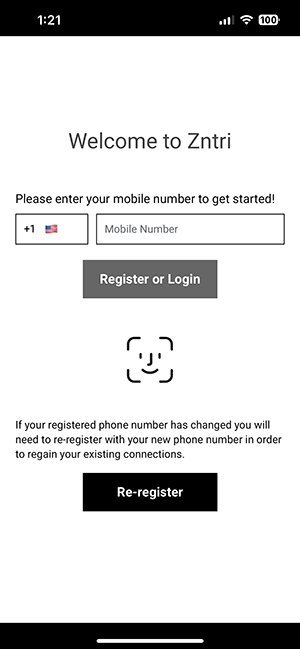
When Zntri first opens your first step will be to either register a new account or login with an existing account. The good news is that Zntri uses a passwordless login method that only requires your mobile number to connect. That means you only ever need to remember you own mobile number, no need for long complex passwords!
Enter your mobile and don't forget to set you country code. When done, tap the register or login button to connect.
When connecting, we will send a one time passcode via text message.
OTP and Passwordless Login
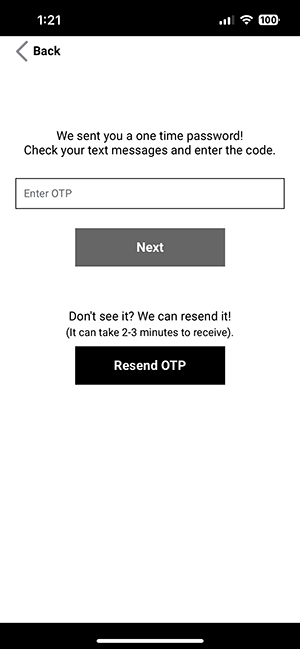
After entering your mobile number we will send you a one time passcode as a text message. When the app asks for this passcode simply type it in and click next.
Passwordless login allows you to easily and securely log into your Zntri account without the need to memorize complex passwords or use password apps to keep track of all your passwords.
If you haven't received your passcode after 60 seconds, tap the "Resend OTP" button and we will send you another code. If you still don't get a code, please tap the back button and confirm that you typed in your mobile number correctly.
Some devices such as iPhone may auto detect when you receive a passcode and will allow you to auto fill it in.
User Profile
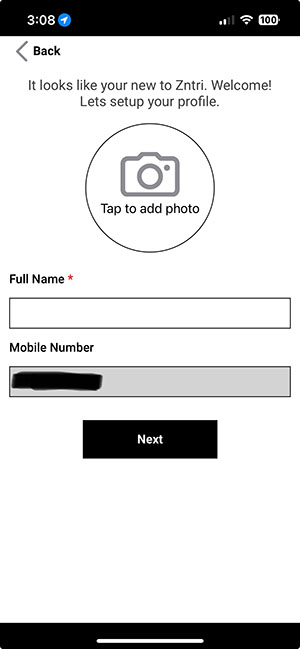
If this is your first time using the Zntri app you will be asked to setup your user profile after successfully authenticating your passcode. You will be required to enter your full name as well as supply a profile picture (optional but recommended).
When adding your profile photo you will be given the option to use an existing photo on your device or take a new photo.
All of your account details can be managed later once you have finished registering your account.
When your done, tap the next button.
App Home (Organizations)
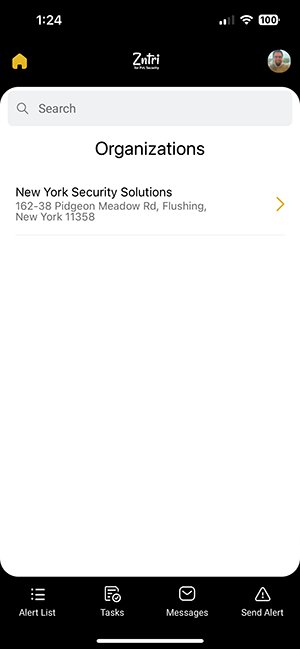
Once you have completed your user profile (first time user) or after you have logged in (existing user) you will now be on your home screen. The home screen displays a list of all organizations that you belong to. If you already belong to an organization it should display in this list. If your list is empty, contact your organization and have them send you an invite.
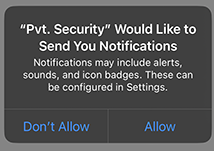
If this is your first-time logging into the Zntri app, the app will ask you to allow us to send you notifications. In order for this app to function as intended it is HILGHLY recommended that you allow notifications. If you do not allow notifications, you will not receive critical alerts and other important updates.
NEXT GUIDE: Get Familiar with the App UI and Applets >>
Was this article helpful?
That’s Great!
Thank you for your feedback
Sorry! We couldn't be helpful
Thank you for your feedback
Feedback sent
We appreciate your effort and will try to fix the article