<< Return to Quick Start Guide index
Zntri was designed from the ground up to be feature rich and expandable while still being simple to use. If you know how to use an iPhone or Android device you should have no problem navigating through Zntri. This guide will help you better navigate throughout the app like a pro.
TABLE OF CONTENTS
Navigation
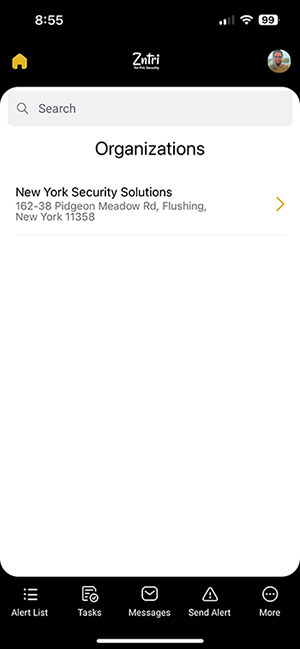
Navigation within Zntri is broken up into 2 main sections (top and bottom navigation bar)
Top Navigation Bar
The top navigation bar provides quick access to the apps higher level components such as the home button and your Zntri profile.
The top navigation bar when no organization has been selected will look like this:

From anywhere in the app you can get back to the home screen with the home button in the top left corner.  You can access your Zntri profile with the profile icon in the top right corner. (the profile button will use your profile photo)
When an organization is selected the top navigation bar will look like this:

The home and profile buttons are the same but you now also have a quick navigation drop down in the center that will allow you to quickly jump between organizations if you belong to more than one.

Bottom Navigation Bar (Applets)
The bottom navigation bar provides access to the main features of the application. We call these applets as each one of them acts like their own app on your phone.

Each one of these applets has its own functionality. The most important applets will always be visible on the bottom navigation bar and if you have access to additional applets you will find them in the "more" applets.
Applets
We are always adding more features to Zntri and new features will typically come in the form of applets. Here is a quick list of the existing applets you may run into:
 Alert List - When alerts happen (such as an Active Shooter or Bomb Threat) you can access the details of these alerts from the alert list. In an emergency always check here first.

Tasks - The tasks applet is where you can go to see all active tasks that are available to you. You can view tasks and their statuses across multiple alerts from the tasks applet.

Messages - All chats and broadcasts can be accessed through the messages applet.

Send Alert - To initiate a new alert you can use the send alert applet.

More - Any applet that you don't see in the main bottom navigation bar will be inside the more applet. This will provide you will any additional applets you have access to.
Calendar - The calendar will allow you to access events across all organizations you belong to.
Members - The members applet will allow you to add and manage members of your organization that will be using the Zntri app.

Teams - Once you have added members to your organization its a good idea to put them into teams. Teams are used to manage who receives different types or alerts and other features.
Roles - From the roles applet you can create and manage custom roles for your organization. Roles as assigned to each member and grant them a set of rights and privilages within the organization.

Alert Types - You can use the alert types applet and create and manage custom alert types such as Active Shooter, Fire, etc.

Areas - You can use the areas applet to assign different locations within your organization that you cover. This is important for providing context of where an alert is taking place or who should be assigned to an alert based on location.

Task Types - Here you can create and manage task types that will be used through the work flow of an alert.

Connections - If you are working with other organizations that are using any of the Zntri apps, you can create and manage connections with those organizations in order to share data.
NEXT GUIDE: Connect to your Organization >>
Was this article helpful?
That’s Great!
Thank you for your feedback
Sorry! We couldn't be helpful
Thank you for your feedback
Feedback sent
We appreciate your effort and will try to fix the article