<< Return to Quick Start Guide index
One of the first and most important things to do when getting started with Zntri is to add members to your organization.
When connected to an organization if you have the right role you can access the staff applet by tapping on the hamburger menu in the top left of the app screen and then tap on the staff applet from the list.
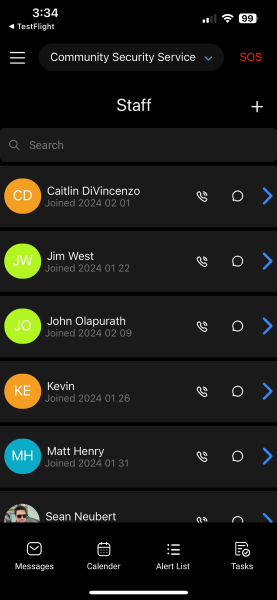
Inside the staff applet you will see a list of all members for your organization. You can tap on an existing member to view and edit them or add a new member with the "+" button at the top of the list.
Adding a new staff member
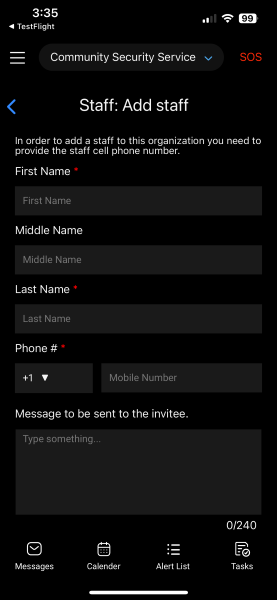
To add a new staff member simply tap the "+" button at the top of the staff members list. The app will give you the option to add from your phones contacts or to add a contact manually.
When first opening the staff applet, the app will ask permission to access your contacts. In order to add members from your phones contacts you will need to allow this permission. If you said no previously you may need to manually enable this from your phones settings app.
If your adding a contact from your phones contacts, you will need to find the contact you will to add and tap on them.
Next you will need to select what phone number you wish to use to add the member (must be a cell phone number that can receive text messages).
Finally, you can customize the members details such as name as well as edit the invite note before tapping the add member button at the bottom.
When a staff member is added, the app will send that user a text message with details on how to download the app as well as the message you provided.
If your adding a contact manually you will need to additionally supply the phone number to be used for the new member.
Staff Member Roles
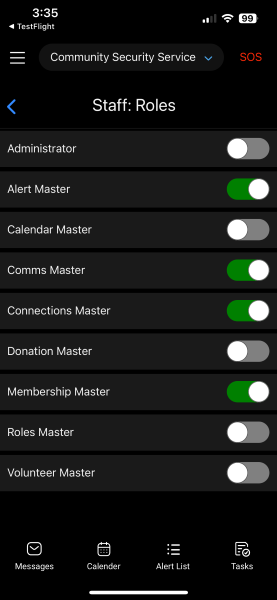
Once you have added a staff member to your organization you will want to also provide them with the right role(s) so that they can perform whatever task you need them to handle within the organization. Staff members will always be able to access features such as the alert list or messages but if you need them to access features such as that ability to add additional staff members, setting up alert types, etc. you will need to assign them one or more roles.
To edit a staff members roles, simply tap the member you want to edit from the members list. Once your viewing that members details, you can tap the "Roles" button in the list at the bottom.
This will open a list of roles that have been assigned to the user. To add a role simply toggle "On" next to each role you want to grant the user. To remove a role you can toggle the slider back to "Off" and hit the back button.
From the members detail screen you should see an update number of roles assigned to the user next to the "Roles" button.
NEXT GUIDE: Alert System Overview >>
Was this article helpful?
That’s Great!
Thank you for your feedback
Sorry! We couldn't be helpful
Thank you for your feedback
Feedback sent
We appreciate your effort and will try to fix the article